 ZZTool
Video to Live Photo – Features & How to Use
What Is Video to Live Photo?
Video to Live Photo is an online tool that allows you to convert short videos into Live Photos that can be used on iPhones. A Live Photo combines a still image with a few seconds of motion, bringing photos to life when you press and hold on the screen. This tool makes the conversion process simple, fast, and accessible directly from your browser.
Key Features
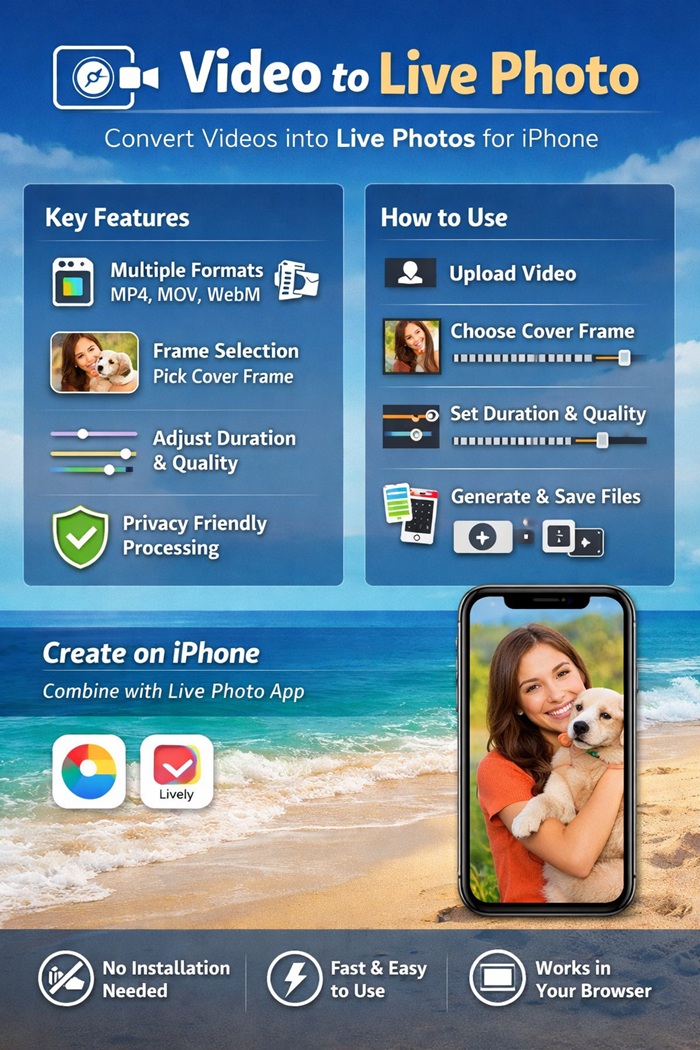
1. Multiple Video Format Support
The tool supports common video formats such as MP4, MOV, and WebM. You can upload videos recorded on your phone, camera, or downloaded from other sources.
2. Frame Selection
You can choose any frame from the video to use as the main photo (cover image) of the Live Photo. This ensures the final result looks exactly the way you want when viewed in the Photos app.
3. Adjustable Duration
The Live Photo duration can be customized, typically up to 3 seconds. This allows you to capture just the most important or interesting part of the video.
4. Quality Control
You can adjust output quality settings to balance image clarity and file size, making the Live Photo suitable for sharing, storage, or wallpaper use.
5. Privacy-Friendly Processing
All video processing is done directly in your browser. Your files are not uploaded to a server, which helps protect your privacy and keeps your data secure.
6. No Installation Required
The tool works entirely online. There is no need to install software or apps on your computer.
How to Use the Tool
Step 1: Upload Your Video
Click the upload area and select a video file from your device. Once uploaded, the video will be displayed with preview controls.
Step 2: Select the Cover Frame
Scroll through the video timeline and choose the frame you want to appear as the main photo of the Live Photo.
Step 3: Adjust Duration and Quality
Set the desired Live Photo length and adjust quality options if needed. Preview the animation to ensure it looks right.
Step 4: Generate the Files
Start the conversion process. The tool will generate a still image and a short video clip.
Step 5: Create the Live Photo on iPhone
Transfer the generated files to your iPhone and use a Live Photo–supported app (such as intoLive or similar apps) to combine them into a true Live Photo.
Common Use Cases
- Turning short memories into animated photos
- Creating Live Photo wallpapers
- Sharing more expressive moments on social media
- Preserving motion in special events like travel, pets, or family moments
Summary
The Video to Live Photo tool provides an easy and flexible way to transform ordinary videos into interactive Live Photos. With simple controls, browser-based processing, and no software installation required, it’s an ideal solution for anyone who wants to bring their photos to life effortlessly.

![Free Tile Quantity Calculator Tool [Recommended]](/assets/blog/2026/1787786513_7ee0db51.jpg)